
Introduction
Posters remain one of the most efficient ways to communicate a focused message. Whether announcing an event, promoting a service, or reinforcing internal messaging, a well-structured poster delivers clarity in seconds.
For teams without formal design training, poster maker template tools reduce friction. Instead of starting from a blank canvas, users work from pre-built layouts that guide hierarchy, spacing, and typography. The goal is not artistic experimentation but reliable execution.
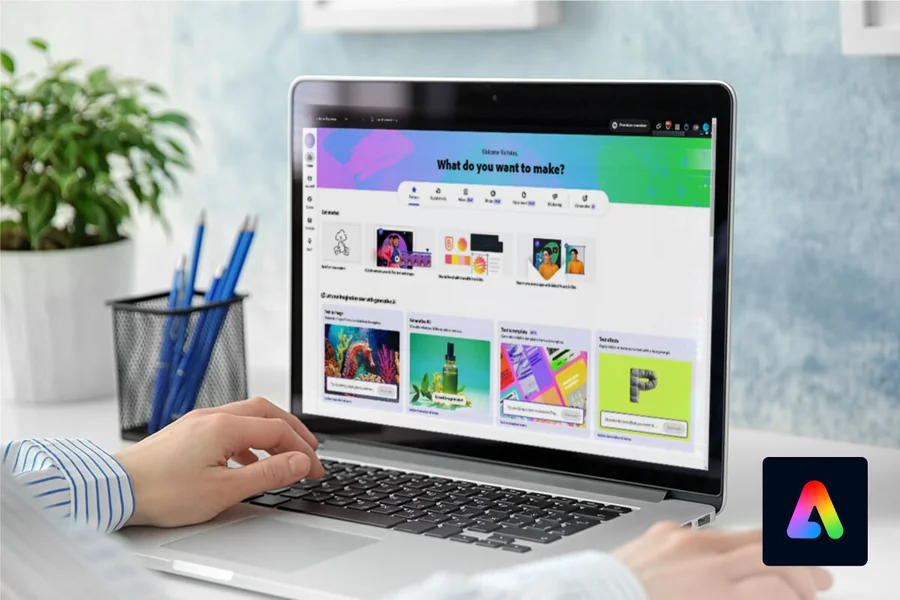
A practical starting point is to design and print posters online with Adobe Express. Template-driven tools like this combine layout structure with editable brand elements, allowing non-designers to produce consistent visuals quickly.
The workflow below explains how to move from concept to print-ready output using poster maker templates and tools, while maintaining brand clarity and technical accuracy.
Step-by-Step How-To Guide for Using Poster Maker Templates Tools
Step 1: Select a Template That Matches Your Message Structure
Goal
Start with a layout aligned to your communication objective.
How to do it
- Browse poster templates by category (event, announcement, sale, informational).
- Identify whether your message is headline-driven, image-led, or text-supported.
- Choose a template that mirrors that structure.
- Confirm the layout supports your required size (A4, 11×17, A3, etc.).
- Duplicate the template before editing.
What to watch for
- Decorative fonts that conflict with brand standards.
- Templates built for digital screens instead of print.
- Overcrowded layouts with too many design elements.
- Minimal margin space.
Tool notes
For teams documenting creative workflow steps, tools like Notion can help store approved layout types and messaging structures for repeat use.
Step 2: Confirm Size and Print Specifications Before Editing
Goal
Lock in technical settings early to avoid resizing issues later.
How to do it
- Confirm where the poster will be displayed.
- Set final dimensions before customizing.
- Enable bleed settings if printing professionally.
- Choose portrait or landscape orientation.
- Save a version labeled with size in the file name.
What to watch for
- Designing in the wrong color mode for your printer.
- Resizing after adjusting typography.
- Ignoring trim lines and safe zones.
- Assuming default export settings are print-ready.
Tool notes
If coordinating specifications with an external print vendor, platforms such as Dropbox can be used to securely share print guidelines and exported proofs.
Step 3: Apply Brand Colors and Typography
Goal
Align the template with your organization’s visual identity.
How to do it
- Replace default template colors with brand palette codes.
- Update headline and body fonts to match approved typography.
- Adjust spacing between headings and subheadings.
- Remove unnecessary decorative effects.
- Save brand styles for reuse if available.
What to watch for
- Low contrast between text and background.
- Mixing multiple font families.
- Shrinking text excessively to fit.
- Overusing gradients or shadows.
Tool notes
For reference management of brand guidelines and design documentation, teams often store style guides in platforms such as Google Drive to ensure everyone uses current visual standards.
Step 4: Insert High-Quality Visual Elements
Goal
Use visuals to support clarity rather than distract from it.
How to do it
- Upload high-resolution images (300 DPI for print).
- Crop images to highlight focal points.
- Use simple icons for emphasis.
- Keep image placement aligned with template guides.
- Add short captions if context is needed.
What to watch for
- Pixelated or stretched images.
- Generic stock photos unrelated to the message.
- Busy backgrounds behind text.
- Misaligned visual blocks.
Tool notes
If managing licensed photography or approved media assets, teams may track image rights and versions in Airtable to avoid outdated or unauthorized visuals.
Step 5: Refine the Message for Distance Readability
Goal
Ensure the poster communicates within a few seconds of viewing.
How to do it
- Keep the headline concise and specific.
- Highlight essential details (date, location, offer).
- Convert long sentences into bullet points.
- Increase font size for key information.
- Print a draft or zoom out to test readability.
What to watch for
- Dense paragraphs.
- Technical language in promotional posters.
- Uneven spacing between sections.
- Weak visual hierarchy.
Tool notes
For reviewing clarity with distributed teams, sharing drafts through tools like Slack can facilitate quick feedback before final export.
Step 6: Export Correctly for Print or Digital Use
Goal
Produce a technically sound final file.
How to do it
- Double-check margins and bleed.
- Manually proofread text.
- Export as high-resolution PDF for print.
- Export PNG or JPG for digital channels.
- Label the file clearly with version and size.
What to watch for
- Cropped text near edges.
- Color shifts after export.
- Incorrect file type for your printer.
- Forgetting to embed fonts.
Tool notes
For teams coordinating distribution timelines and approvals, project management platforms such as Asana can help track poster production and rollout stages.
Step 7: Coordinate Distribution and Measure Response
Goal
Extend the poster’s reach beyond a single location.
How to do it
- Share a digital version internally or via email.
- Repurpose the design for social platforms.
- Track engagement metrics if shared online.
- Archive editable versions for reuse.
- Note which layout formats perform best.
What to watch for
- Uploading low-resolution versions to social media.
- Inconsistent branding across channels.
- Losing the editable source file.
- Not reviewing performance data.
Tool notes
While Adobe Express supports resizing for social channels, coordinating digital distribution can be streamlined with platforms like Mailchimp to test subject lines and promotional variations tied to your poster campaign.
Common Workflow Variations
Event Posters
Prioritize date and location. Use large, bold headlines and minimal body text.
Educational Posters
Use sectioned layouts with subheadings and icon markers for clarity.
Retail Promotions
Highlight one offer prominently. Avoid competing visual elements.
Internal Communications
Emphasize clarity over decoration. Maintain consistent brand typography.
Checklists
Before You Start Checklist
- Approved brand palette and fonts
- High-resolution logo files
- Confirmed final poster size
- Finalized headline and message
- Image usage rights verified
- Print specifications confirmed
- Distribution timeline set
- Editable template selected
Pre-Export / Pre-Order Checklist
- Headline readable from distance
- Date and location verified
- No text inside bleed area
- Images at 300 DPI (for print)
- Consistent spacing and alignment
- Correct file format selected
- Version labeled clearly
Common Issues and Fixes
Blurry images
Replace with higher-resolution assets or reduce display size.
Text cut off during printing
Enable bleed and adjust safe margins.
Poster feels cluttered
Remove non-essential elements and increase white space.
Color mismatch in print
Consult printer guidelines and test small proofs.
Fonts change on export
Embed fonts or use widely supported families.
How To Use Poster Maker Template Tools: FAQs
Are templates too restrictive for branding?
Templates provide structural discipline. Customization through color, typography, and imagery ensures brand alignment.
Should I design for print first or digital first?
If printing is required, set print dimensions first. Digital adaptations can follow.
How do I maintain consistency across multiple posters?
Use saved brand kits and repeatable template structures. Store approved versions centrally.
Can small teams produce professional results without design software training?
Yes. Poster maker template tools reduce complexity by handling layout rules automatically, allowing teams to focus on message clarity and brand consistency.